How to pause before opening Instagram on iPhone
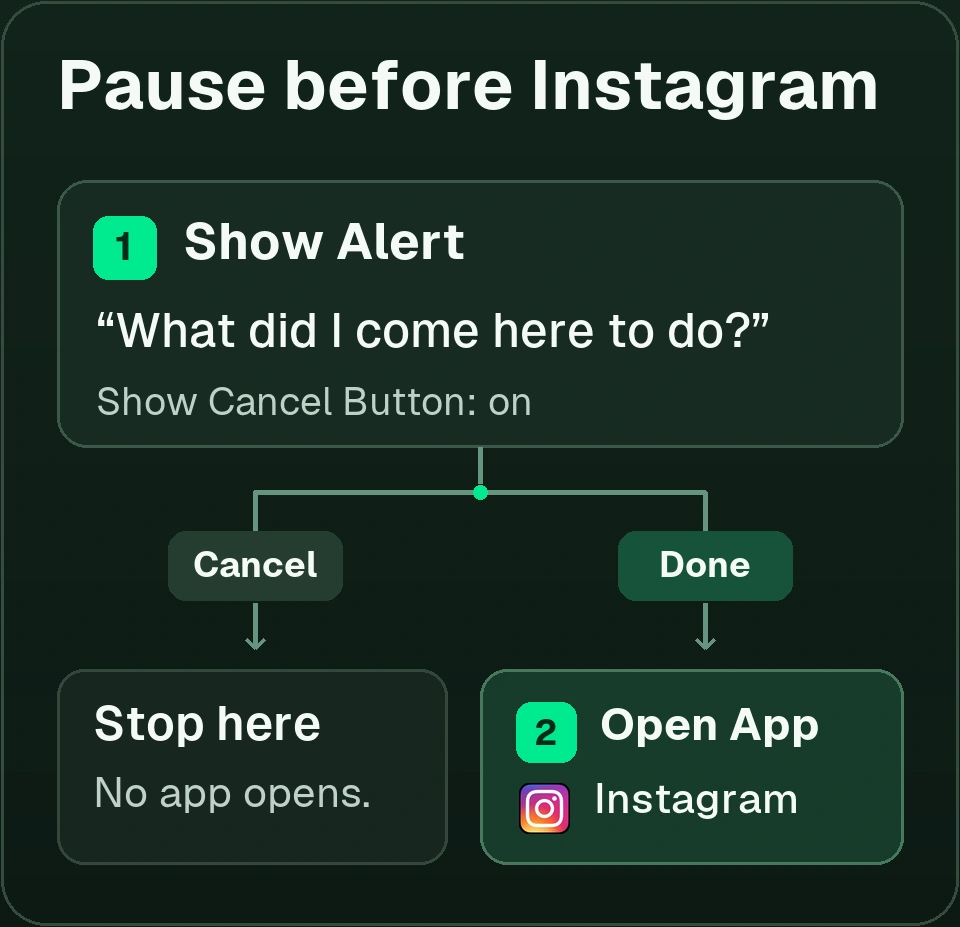
Replace the Instagram icon you tap out of habit with a shortcut that asks, “What did I come here to do?” Tap Cancel and you stay on the Home Screen. Tap Done and Instagram opens. You can keep your DMs and use Apple’s free Shortcuts app for the whole setup.
Make a shortcut with two actions
- Open Shortcuts on your iPhone. Go to your shortcuts, tap + to create one, and give it a recognizable name, such as Open Instagram?
- Search the actions for Show Alert and add it. Set the alert text to What did I come here to do? Expand the action’s options and enable Show Cancel Button. A cancellation stops the shortcut right there. How Apple’s alert action works.
- Under the alert, add the Open App action. Tap the app placeholder and choose Instagram. The order matters. The alert has to run first.
- Open the shortcut’s Details and choose Add to Home Screen. Once you have both icons, hold the original Instagram icon, tap Remove App, then Remove from Home Screen. Instagram stays installed in your App Library. Move the new shortcut to the spot your thumb usually finds. Add a shortcut to the Home Screen · Move an app to App Library.
Try both buttons once
Tap the new icon and choose Cancel. You should be looking at your Home Screen. Tap it again, name a job like “reply to Maya about dinner,” and choose Done. Instagram should open. If it opens immediately both times, check which icon you tapped and that Show Alert comes first.
If you have ADHD and often forget why you opened Instagram, try a more specific prompt: “Who did I come here to reply to?” You can change the words in Show Alert whenever you like.
The pause applies when you tap this shortcut. A DM notification, a link, Search, or the App Library can still open Instagram directly. That can be handy if most of your accidental opens start on the Home Screen and your notifications are mostly messages you actually want.
What if I keep finding another way in?
If time spent in the app matters more than how you enter it, set a daily allowance. Screen Time measures the app even when you open it from a notification. Set an iPhone limit that’s harder to ignore.
If you want someone to challenge your reason, Takeback uses Apple’s Screen Time access to put a block on apps you choose. In Hardcore mode, you can ask Sarge for time by voice. “I’ve got a customer DM to answer” gives him something to evaluate. An approved session opens the whole app, including messages and the feed, until the time runs out.
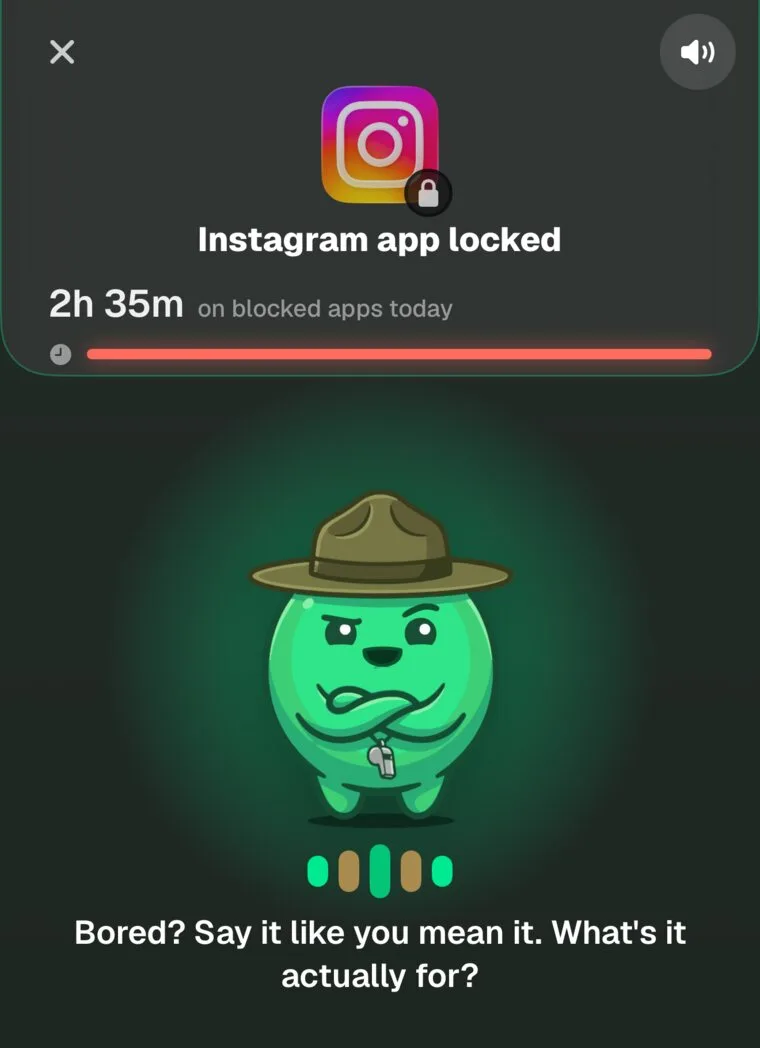
Takeback is free to download on iPhone. Its coaching and blocking program requires a paid subscription.
See Takeback on the App Store